Last updated on November 30th, 2023.
5 MIN READIf you are on a budget but need to create an NPS survey for your small business, Google Forms is a great platform for it.
There are a few tutorials out there about how to make an NPS survey for free using Google Forms.
They do a good job of what to do with your data once it’s collected, but tend to skip over the most important part:
How exactly to write and program the NPS survey questions in Google Forms?
Let’s make a short NPS survey with the main question and some follow-ups.
Contents
How to write the NPS question?
So, you opened up Google Forms to design your NPS survey…
What do you actually type?

Let’s remember… What is the NPS question again?
It asks for your respondent’s feedback on an 11-point scale, ranging from 0 to 10:
How likely are you to recommend
[us, or our thing, whatever it is]
to a friend or colleague?
Now, let’s program this question in Google Forms.
Which question type to select for NPS in Google Forms?
Do not select “linear scale”—here’s why.
You might be tempted to use the “linear scale” question type. Don’t!

Yes, the answers to the NPS question are most certainly on a “scale” of 0 to 10, and you will be able to anchor the scale to “not at all” and “extremely likely.”
Here’s how this version of the question would look to a respondent:

It certainly looks nice and compact on the screen, but that’s not everything you’re looking for!
There are two things you can’t do with the linear scale in Google Forms:
- Route the respondents to follow-up questions based on their answers. As of August 2023, Google Forms do not have the capability to “Go to selection based on answer” using the “linear scale” question type.
- Set a mid-point. You may want to set a mid-point for the “neutral” option 5. It’s not necessary, but you might be in a situation that calls for it, or it could just be your personal preference. (In another post, I discuss in more depth whether you should label the neutral point on the NPS scale.)
Instead, use “multiple choice”!
Here’s what it will look like setting up NPS as the “multiple choice” question type:

Here’s how the multiple choice question would look to a respondent:

It takes up some space, but the “multiple choice” option in Google Forms does allow you to set “go-to” survey logic—super important for our next step.
How to set up survey logic for NPS in Google Forms
What we’ve covered so far may be enough for your needs already, but it’s good practice to give your respondents an outlet to say whatever they want.
Follow-up questions are common for NPS surveys, because the question itself only gives you a number to go with—and not much context.
To get that extra info and keep things tailored to the respondents, let’s treat your customers to different follow-up questions, depending on their rating.
How to set up sections for follow-up NPS questions
First, you’ll want to set up three new sections using the “Add section” button:
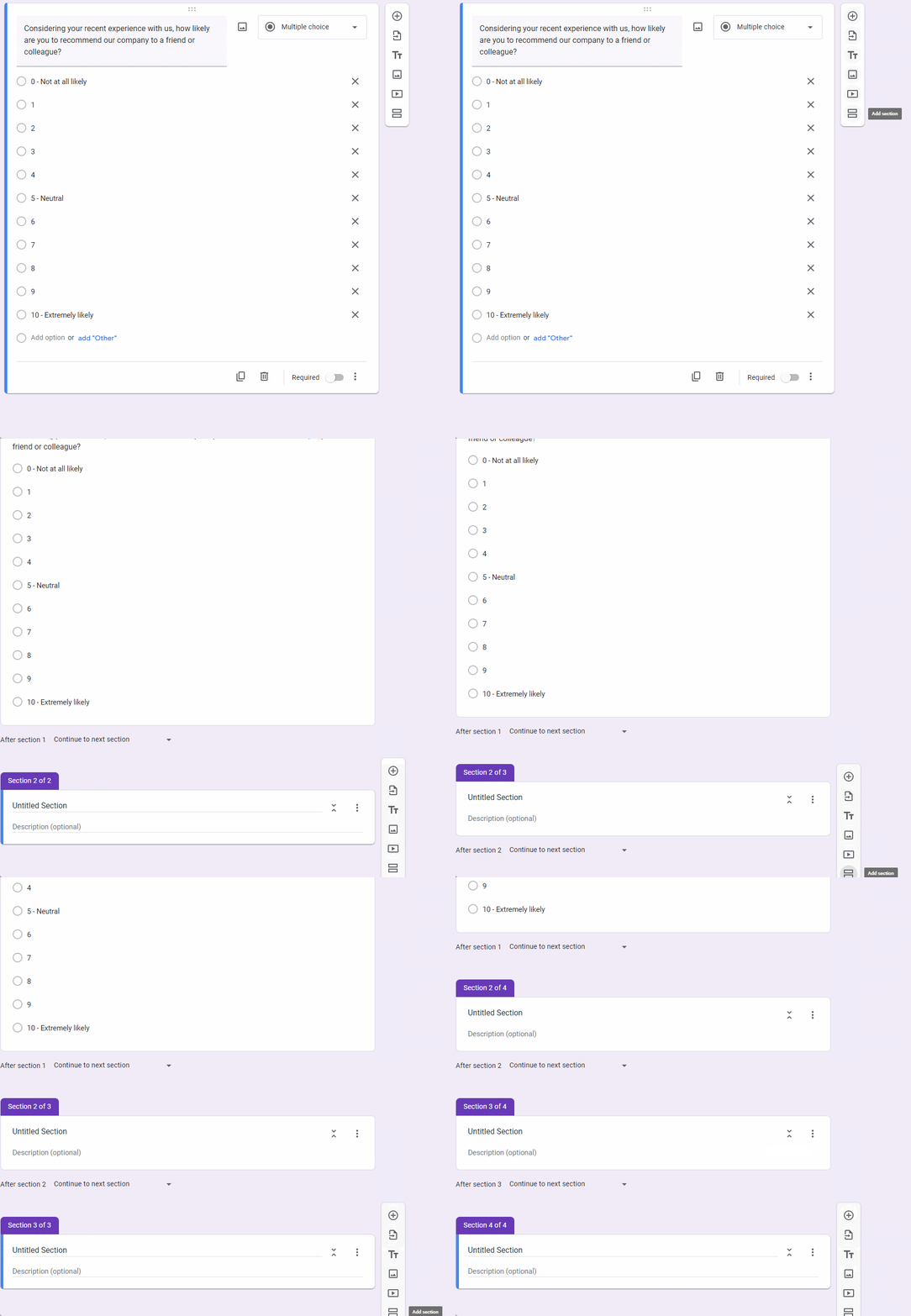
Straightforward.
These sections will be for your Detractors, Passives, and Promoters.
Do not name your survey sections with the names of the NPS segments!
Section names will be visible to your respondents. The names of NPS segments are for your—researcher’s—eyes only.
Now, you’ll want to write questions aimed at each of the segments.
Set those questions up as “short answer” questions, or “paragraph” questions—if you’d like to get more long-form feedback (that is, text fields will not limit the amount of text respondents can enter as much). Longer responses means more verbatims to code… There’s one simple strategy to how you can shorten the text your respondents enter, so it’s easier for you to work with.
Once you’re done, you sections should look something like this:

In order of appearance, the NPS follow-up questions here are:
- for Detractors, “We always want to make things right. What one thing could we improve to make your experience better?”
- for Passives, “What one thing can we do to get a rating closer to 10?”
- for Promoters, “What do you like about us the most?”
Check out my other article for more examples of how to ask follow-up questions for NPS depending on segment.
How to route respondents to different sections
Now, you’ll want to set up your survey logic to show each of the sections to the appropriate segment.
On the multiple choice question, select “Go to section based on answer“.
Then, to each of the answers, add an instruction to go to another section, like so:
| Segment | Responses | Section in your Google Form |
| Detractors | 0-6 | 2 |
| Passively satisfied (“Passives”) | 7-8 | 3 |
| Promoters | 9-10 | 4 |
Here’s what the process should look like for you:

You could go even farther and make the experience nicer for your respondents by addressing those with the worst ratings (like 0-3) differently.
Those respondents will be the most unhappy with your brand, so you could word the most empathetic questions geared toward them.
After this step, you’re done!
Now…
Collect your NPS data with Google Forms
On a final note, make sure to not mention “NPS” in the title of your Google Form…
It’s always better to call it something else—like “customer survey”.
That’s it—your survey is ready to go out and collect some data so you can learn what your NPS scores are!
Simple, right?
Still…
☝️ Always (always, always) test your surveys, no matter how simple.
Let’s make sure our survey logic works, and shows follow-up questions correctly:

Once you can confirm that options 0-6 lead to follow-up questions for Detractors, 7-8 are for Passives, and 9-10 are for Promoters—you are good to go.
Want to learn more about NPS? Go straight to the source! Read the ultimate guide to NPS from the metric’s author.
At zero cost to you, I will earn an affiliate commission if you click through this Amazon link and finalize a purchase. Creating free resources like this one takes time. Thank you for your support! 🥰


Leave a Reply